Garmin GPS Navigation: A Practical Guide
Garmin GPS navigation helps drivers, hikers, cyclists, boaters, and other travelers find their way using dedicated navigation devices and compatible apps. Garmin offers products for different activities, so the features and maps available depend on the device. For drivers, a dedicated GPS can provide turn-by-turn directions without relying entirely on a phone’s navigation app or cellular connection.
How Garmin GPS Navigation Works
A Garmin GPS device uses signals from satellites to estimate its location. It compares that position with map data stored on the device and calculates a route to a selected destination. As you travel, the device displays your location, gives directions, and can recalculate the route if you take a different road.
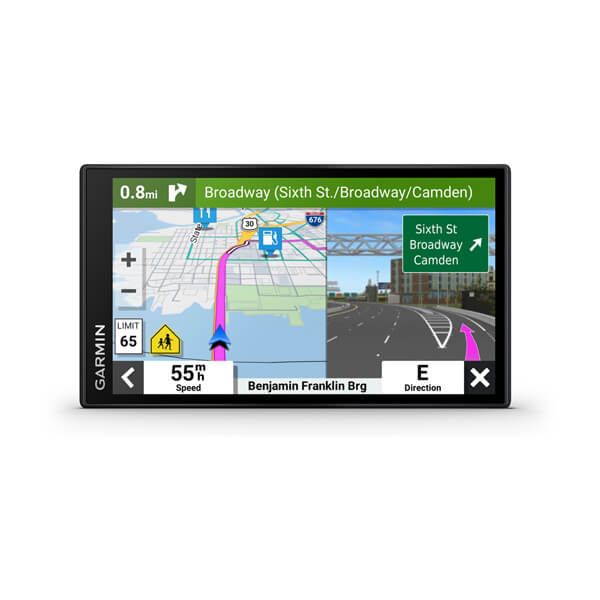
Navigation features vary by model. Depending on the device and region, options may include spoken turn-by-turn directions, lane guidance, speed-limit information, points of interest, traffic updates, and alerts for certain road conditions. Check the product specifications to confirm which features are available and whether they require a connected phone, subscription, or separate accessory.
Garmin GPS Devices for Different Activities
Garmin makes navigation products for a range of uses. Automotive devices are designed for road trips and everyday driving. Outdoor handheld units and selected watches support activities such as hiking and geocaching, while cycling devices focus on routes and ride data. Garmin also offers marine navigation products for use on the water.
Choosing a device designed for your activity matters. A car GPS is not a substitute for a marine chartplotter, and an outdoor handheld may be better suited to trails than highway driving. Consider where you plan to travel and what kind of mapping and guidance you need.
Maps, Updates, and Connectivity
Maps are central to any GPS navigation system. Garmin devices may include maps for specific regions, and some models support map updates or additional map downloads. The update process and availability depend on the device. Garmin’s computer software or mobile apps may be used to manage certain updates and settings.
Some devices can connect to a compatible smartphone for features such as live traffic, weather, notifications, or other connected services. These features may depend on phone compatibility, an active internet connection, and regional availability. A device with maps stored locally can still provide basic navigation when a phone has no cellular service, though connected features may not be available.
Tips for Better Navigation
- Update maps before a trip: Check for available map and software updates so your device has current information.
- Plan your route: Review the route and destination before driving, especially for long trips or unfamiliar areas.
- Mount the device safely: Place it where the screen is easy to see without obstructing your view of the road.
- Follow road signs: GPS directions are helpful, but posted signs and current road conditions should take priority.
- Check settings: Review routing preferences, such as avoiding toll roads or highways, if those options are available on your model.
Choosing the Right Garmin GPS
Before buying, consider screen size, map coverage, battery life, mounting options, voice guidance, and the types of routes you expect to use. Drivers who frequently travel in areas with limited cellular coverage may prefer a dedicated device with maps stored on it. Travelers who want connected information should check what services the specific model supports and what is required to use them.
Conclusion
Garmin GPS navigation offers purpose-built tools for getting around by road, trail, bike, or boat. The best choice depends on your activity, preferred features, and map needs. Comparing the specifications of individual models—and keeping maps and software up to date—can help you get the most from your navigation device.
Garmin GPS Navigation FAQs: Map Updates, Smartphone Pairing, Offline Use, Troubleshooting, and Route Settings
- How do I update the maps on my Garmin GPS navigation device?
- How do I connect my Garmin GPS to my smartphone?
- Can a Garmin GPS navigate without an internet connection?
- How do I reset or troubleshoot my Garmin GPS navigation device?
- How do I change the route settings on my Garmin GPS?
How do I update the maps on my Garmin GPS navigation device?
To update maps on your Garmin GPS navigation device, connect it to a computer with a USB cable and open Garmin Express, Garmin’s desktop application. Add your device if prompted, then select “Check for Updates” and install any available map updates. Keep the device connected until the update is complete, and make sure it has sufficient storage and power. Update options and steps can vary by model; check Garmin’s support site or your device manual if you need help.
How do I connect my Garmin GPS to my smartphone?
To connect your Garmin GPS to your smartphone, first install the Garmin app recommended for your device, such as Garmin Drive, Garmin Connect, or Garmin Explore. Turn on Bluetooth on your phone, then open the app and follow its prompts to add or pair a device. Keep the GPS nearby and confirm any pairing codes or permission requests on both devices. The exact steps and available connected features vary by model, so check your Garmin device’s manual if it doesn’t appear in the app.
Can a Garmin GPS navigate without an internet connection?
Yes. Many Garmin GPS devices can provide basic navigation without an internet connection because maps are stored on the device and location is determined using GPS satellite signals. However, features such as live traffic, weather, or other connected services may require a compatible smartphone or internet access, and available offline features vary by model. Check that your maps are downloaded and up to date before traveling.
How do I reset or troubleshoot my Garmin GPS navigation device?
To troubleshoot a Garmin GPS navigation device, first restart it and make sure it’s adequately charged or connected to a working power source. If it’s having trouble finding satellites, move outdoors to an open area with a clear view of the sky and allow it time to acquire a signal. Check for available software and map updates using Garmin’s recommended update tool or app for your model. If problems continue, consult the device’s manual for model-specific reset steps; a factory reset may erase saved settings, routes, or other data, so back up anything important first. For persistent issues, contact Garmin Support.
How do I change the route settings on my Garmin GPS?
To change route settings on a Garmin GPS, open the device’s Settings menu and look for Navigation, Routing, or Route Preferences; the exact labels vary by model. There, you may be able to choose a route calculation method and set avoidances, such as toll roads, highways, or unpaved roads. Save your changes, then start or recalculate your route so the updated preferences can take effect. Check your device’s manual if the menu options differ.