Garmin nüvi 55LM: A Practical Guide to This Portable GPS Navigator
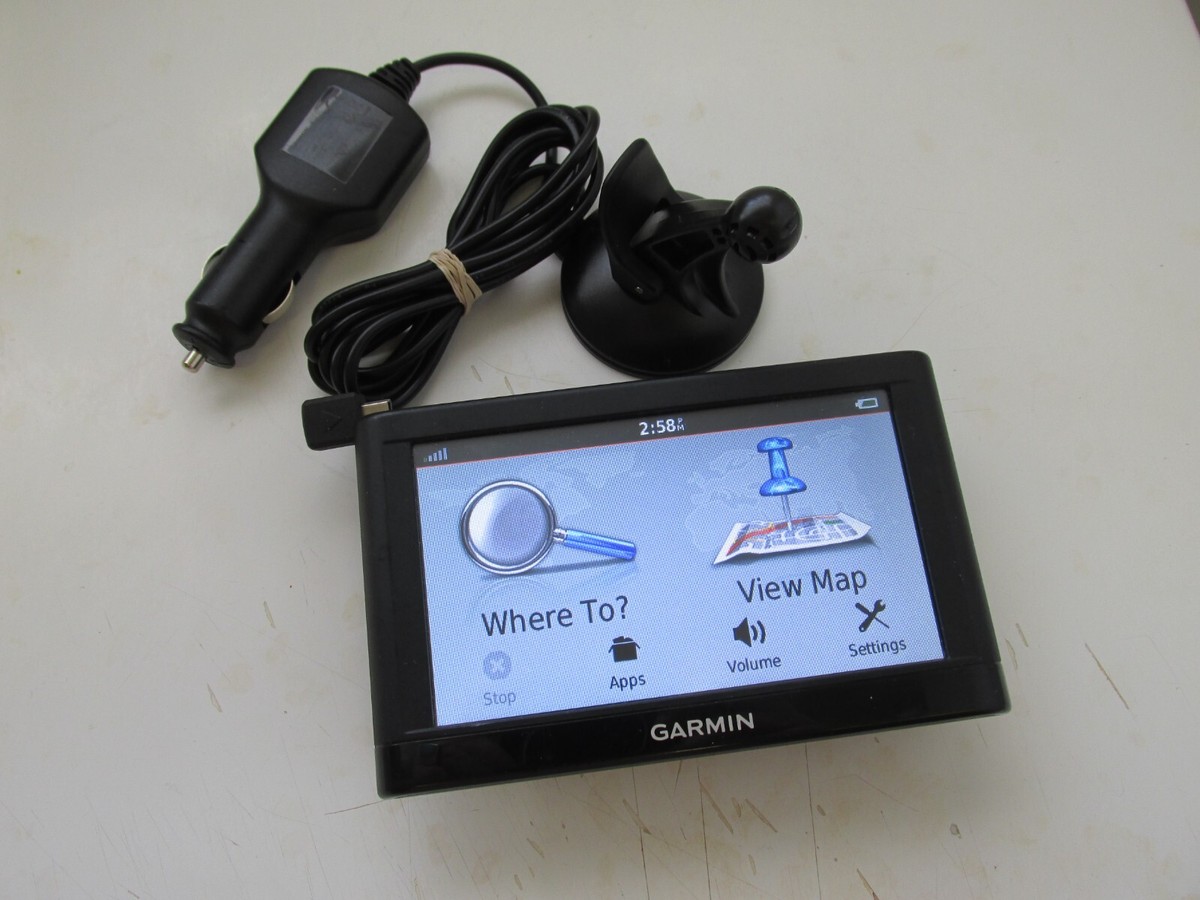
The Garmin nüvi 55LM is a dedicated, portable GPS navigator designed to make driving directions easy to see and follow. With a 5-inch touchscreen and spoken turn-by-turn guidance, it offers a straightforward alternative to navigating with a phone. The “LM” in its name stands for “lifetime maps,” referring to map updates offered under Garmin’s applicable terms.
Key Features
- 5-inch touchscreen: The display presents maps and directions in a format that’s easy to view from the driver’s seat. The device can be mounted on a vehicle’s windshield or dashboard using a compatible mount.
- Spoken turn-by-turn directions: Voice prompts announce upcoming turns, helping drivers follow a route without needing to watch the screen constantly.
- Lifetime map updates: The 55LM was sold with eligible map updates for the life of the device, subject to Garmin’s terms and update availability.
- Lane guidance: Visual lane assistance can help drivers prepare for turns and highway exits.
- Speed limit information: The navigator can display speed limit information for many roads where data is available. Drivers should always follow posted signs.
What It’s Like to Use
The nüvi 55LM is built around a simple purpose: entering a destination and receiving clear driving directions. Its dedicated GPS format can be convenient for drivers who prefer not to rely on a smartphone, or who want to keep their phone available for calls and other tasks.
Like other standalone navigators, the 55LM is most useful when it has a clear view of the sky and is positioned securely without obstructing the driver’s view. Route details and map coverage depend on the maps installed on the device.
Map Updates and Device Age
The nüvi 55LM is an older model, so anyone using or buying one today should check its current map and software support before relying on it for regular travel. Garmin Express may be used to connect compatible devices to a computer and check for available updates. The “lifetime maps” designation does not necessarily mean that updates will remain available indefinitely; eligibility and availability are governed by Garmin’s terms.
Before a long trip, verify that the device has recent map data and compare its route with current road information. Smartphone navigation may provide more up-to-date traffic or road-closure details, depending on the app and connection available.
Things to Consider Before Buying
Because the Garmin nüvi 55LM is a legacy device, its condition and included accessories can vary significantly on the resale market. Check that the touchscreen responds properly, the battery holds a charge, and the unit can acquire a GPS signal. Confirm whether the seller includes a power cable, vehicle mount, and any other accessories you need.
It’s also worth checking map-update availability and compatibility with your computer before purchasing. If you need live traffic, connected services, or frequent map updates, compare the nüvi 55LM with newer navigation devices or a current smartphone navigation app.
Is the Garmin nüvi 55LM Right for You?
The Garmin nüvi 55LM may suit drivers who want a basic, dedicated GPS with a large display and spoken directions. Its simple, focused design can be appealing for everyday trips and for vehicles without built-in navigation. However, its age means map support and condition are important considerations.
For occasional use, a well-functioning 55LM with suitable map data may still be useful. For frequent travel, current traffic information, or dependable access to the latest roads, consider a newer navigation option and confirm its features before making a purchase.
Top 5 Tips for Optimizing Your Garmin nüvi 55LM Experience
- Use Garmin Express to install lifetime map updates.
- Mount the nüvi 55LM where it won’t block your view.
- Enter destinations before you start driving.
- Check the route and road signs; GPS directions can be outdated.
- Keep the device connected to vehicle power on long trips.
Use Garmin Express to install lifetime map updates.
To check for lifetime map updates on your Garmin nüvi 55LM, connect the device to a computer with a USB cable and open Garmin Express. If needed, install Garmin Express from Garmin’s official website, then add your nüvi and follow the prompts to view and install available updates. Update access depends on device eligibility, Garmin’s terms, and current availability, so check Garmin Express for the latest information.
Mount the nüvi 55LM where it won’t block your view.
Mount the Garmin nüvi 55LM where it’s easy to see but doesn’t block your view of the road. Position it low on the windshield or on a suitable dashboard mount, making sure it doesn’t obstruct your view of traffic, pedestrians, or road signs. Secure the device before driving, and adjust its angle while parked so you can glance at directions without taking your attention away from the road.
Enter destinations before you start driving.
Enter your destination into the Garmin nüvi 55LM before you start driving. Setting your route while parked gives you time to check the address and review the directions without distraction. Once you’re on the road, follow the spoken prompts and keep your attention on traffic and road conditions.
Check the route and road signs; GPS directions can be outdated.
Before following directions from your Garmin nüvi 55LM, review the route and watch for posted road signs. The device’s map data may be outdated and may not reflect recent construction, closures, detours, or changes to traffic rules. If the GPS directions conflict with signs or current road conditions, follow the signs and drive safely; check for updated maps before your trip when possible.
Keep the device connected to vehicle power on long trips.
On long trips, keep your Garmin nüvi 55LM connected to vehicle power to help prevent the battery from running low during navigation. Make sure the power cable is securely connected to both the device and the vehicle’s power outlet, and position it so it won’t interfere with driving.