Android Car Navigation: A Smarter Way to Get Where You’re Going
Android car navigation makes it easier to plan trips, find destinations, and respond to changing road conditions. Whether you use an Android phone connected to your car or a vehicle with built-in Android navigation, you can access maps and driving directions through a familiar interface.
What Is Android Car Navigation?
Android car navigation refers to navigation apps and systems that run on Android devices or work with Android Auto. These tools use GPS and map data to show your location, calculate routes, and provide turn-by-turn directions. Depending on the app, they may also offer traffic information, points of interest, and alternate routes.
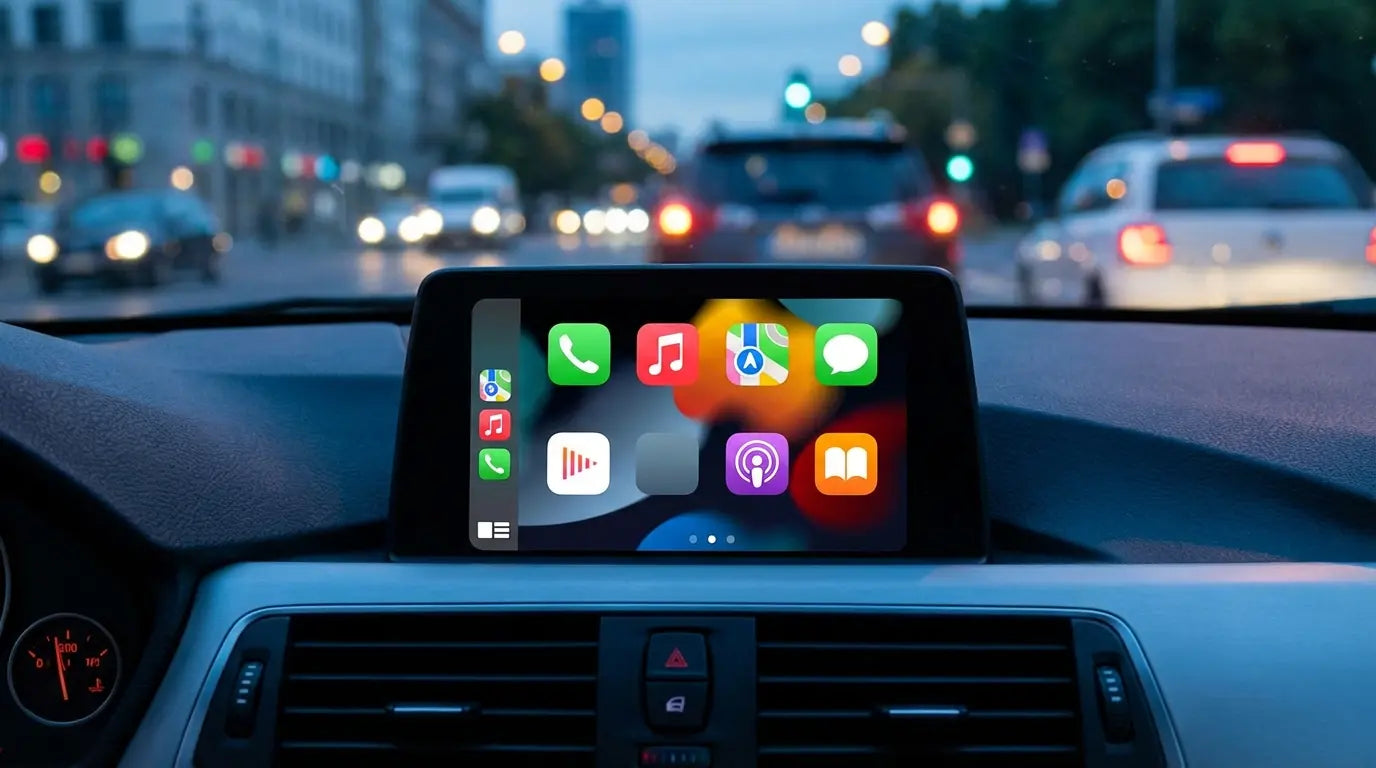
Android Auto lets compatible phones connect to compatible vehicle displays. Navigation apps can then appear on the car’s screen, giving drivers a larger view of the route and access to selected controls. Availability and features vary by phone, vehicle, app, and region.
Common Features
- Turn-by-turn directions: Follow visual prompts and, in many apps, spoken instructions.
- Route planning: Choose a destination and compare available routes based on factors such as distance or estimated travel time.
- Traffic updates: Some services use current traffic information to suggest a different route when conditions change.
- Destination search: Look up addresses, businesses, landmarks, and other places of interest.
- Offline maps: Certain apps allow maps for selected areas to be downloaded for use when an internet connection is unavailable. GPS reception and app features may still vary.
- Voice controls: On compatible devices, voice commands can help with navigation tasks while keeping hands on the wheel.
Using Android Navigation in Your Car
To get started, install or open a navigation app on your Android phone and make sure location services are enabled. If your vehicle supports Android Auto, connect your phone using a compatible USB cable or wireless connection, depending on the vehicle and phone. Follow the prompts on both screens, then open a navigation app from the car display.
If your car does not support Android Auto, you can use your phone as a standalone navigation device. Secure it in a suitable mount before driving, set your destination while parked, and make sure the screen is positioned so it does not block your view of the road.
Tips for a Better Navigation Experience
- Update your navigation app and downloaded maps before a long trip.
- Enter your destination and review the route before setting off.
- Check that your phone is charged, and use a suitable car charger when needed.
- Download offline maps ahead of time if you expect to travel through areas with limited data coverage.
- Adjust audio and display settings while parked so directions are easy to follow.
- Use a secure phone mount and avoid handling your phone while driving.
Choosing an Android Navigation Setup
The right setup depends on how you drive and what your vehicle supports. A phone connected to Android Auto can be convenient if you already use a compatible smartphone and car. A standalone phone setup may work for occasional trips or vehicles without a compatible display. When comparing navigation apps, consider map coverage, offline features, traffic information, ease of use, and privacy settings.
It is also worth checking compatibility before buying accessories or relying on a particular feature. Android Auto availability depends on the vehicle and phone, while app functions can differ by location and may change over time.
Drive Safely
Navigation is a helpful aid, but drivers should continue to pay attention to road signs, traffic, and changing conditions. Follow local laws, set routes before driving, and pull over safely if you need to make adjustments. With a suitable setup and a little preparation, Android car navigation can make everyday commutes and longer journeys easier to manage.
9 Essential Tips for Seamless Android Car Navigation
- Connect your phone before driving.
- Set your destination while parked.
- Download offline maps for weak-signal areas.
- Turn on voice guidance.
- Mount your phone where it won’t block your view.
- Use Do Not Disturb while driving.
- Check traffic before choosing a route.
- Keep your phone charged.
- Follow road signs over app directions.
Connect your phone before driving.
Connect your phone to your car’s navigation system before you start driving. This gives you time to open your preferred app, enter your destination, check the route, and adjust audio or display settings while parked. Getting everything set up in advance helps reduce distractions and lets you focus on the road.
Set your destination while parked.
Set your destination while parked so you can review the route, choose your preferred settings, and start turn-by-turn directions before driving. This helps reduce distractions behind the wheel and lets you focus on the road. If you need to change your destination or adjust the route, pull over somewhere safe first.
Download offline maps for weak-signal areas.
Download offline maps before driving through areas with weak or unreliable cell service, such as rural roads, mountain passes, or remote highways. Saving the map in your navigation app lets you view roads and follow your route even when mobile data is unavailable. Download maps while connected to Wi-Fi, check that the area is covered, and remember that live traffic updates and some search features may still require an internet connection.
Turn on voice guidance.
Turn on voice guidance to hear directions without needing to keep looking at the screen. Spoken prompts can help you prepare for upcoming turns and lane changes while keeping your attention on the road. Before you start driving, adjust the volume and choose a voice guidance setting that works for you. Always follow traffic signs and conditions, even when they differ from the app’s instructions.
Mount your phone where it won’t block your view.
Mount your phone in a secure, easy-to-see spot that doesn’t block your view of the road, dashboard displays, or mirrors. Set your route before driving, and avoid reaching for or adjusting the phone while the vehicle is moving.
Use Do Not Disturb while driving.
Turn on Do Not Disturb while driving to reduce calls, texts, and app notifications that can distract you from the road. Many Android phones can enable this automatically when they detect that you’re driving, or you can switch it on before you leave. Set up exceptions for important contacts if needed, and rely on your navigation app’s spoken directions so you can keep your attention on driving.
Check traffic before choosing a route.
Before choosing a route, check current traffic conditions in your Android navigation app. Congestion, road closures, and accidents can affect your travel time, so comparing available routes may help you find a smoother way to your destination. Review the suggested options while parked, and follow traffic laws and road signs if conditions change along the way.
Keep your phone charged.
Keep your phone charged so your navigation app stays available throughout your drive. GPS, mobile data, and a bright screen can drain the battery quickly, especially on longer trips. Before you leave, charge your phone and bring a compatible car charger or power cable.
Follow road signs over app directions.
Use your navigation app as a guide, but follow posted road signs and obey traffic laws above any app directions. Signs reflect current restrictions, closures, detours, and local conditions that a map may not show right away. If an instruction seems unsafe or conflicts with a sign, continue safely according to the signs and let the app recalculate your route.