My Location Traffic Report: How to Check Traffic Near You
A traffic report for your location can help you decide when to leave, which route to take, and whether to expect delays. Because traffic conditions change throughout the day, use a navigation app or local transportation source for current information. A website or article cannot identify your location or provide live traffic conditions unless you share your location with a service that supports it.
How to Get a Traffic Report for Your Location
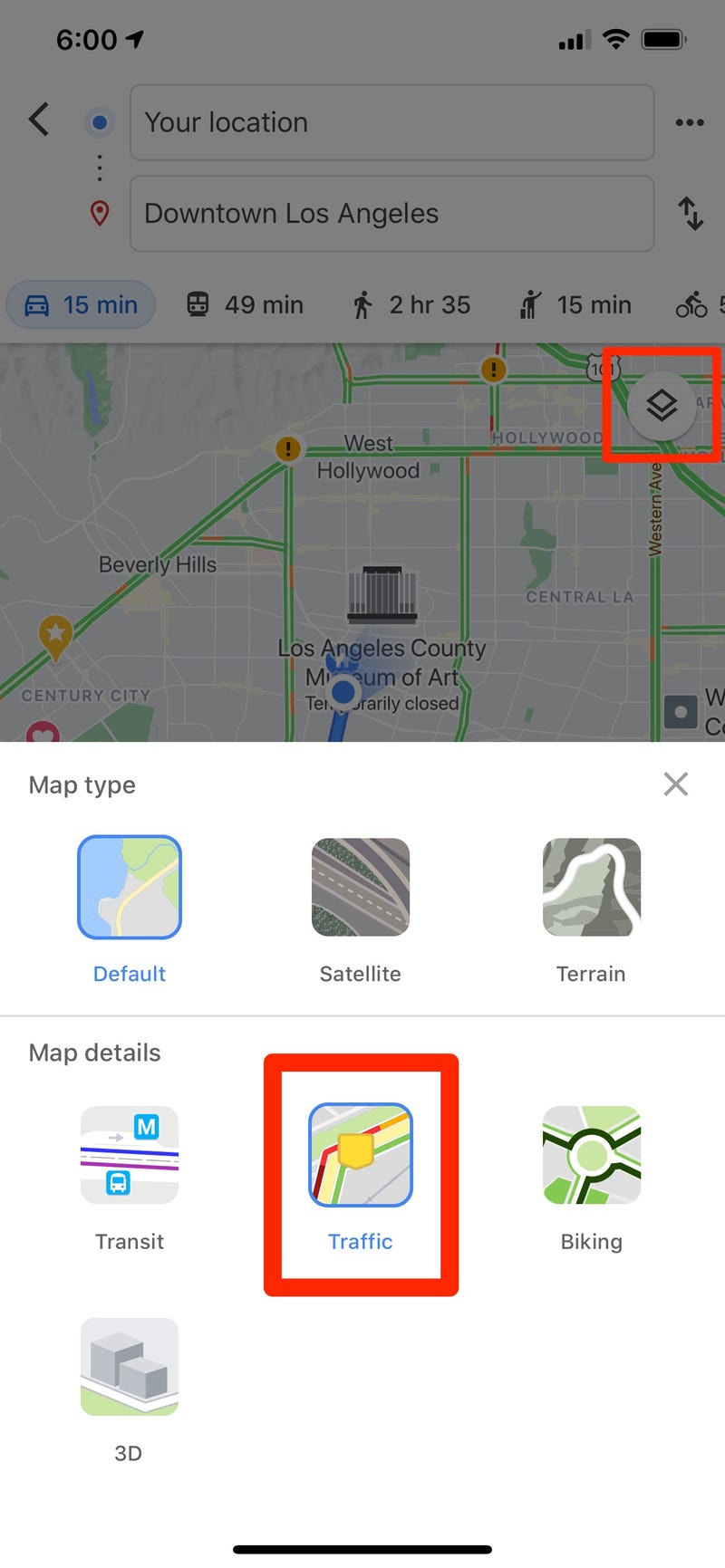
- Open a navigation or maps app. Choose a service that provides live traffic information.
- Allow location access if you want nearby results. Check your device’s location settings and the app’s permissions.
- Search for your destination. Route directions can show estimated travel time, congestion, and reported incidents along the way.
- Review alternate routes. Compare the estimated time and road conditions before choosing a route.
- Check again before you leave. A crash, road closure, or changing traffic volume can affect your trip after you first look.
What a Traffic Report May Show
Depending on the service and the area, a traffic report may include:
- Congestion and estimated travel times
- Crashes, disabled vehicles, or other reported incidents
- Road closures, construction, and lane restrictions
- Delays on highways and major roads
- Alternative routes and estimated arrival times
- Public transportation or transit alerts, where available
Tips for Reading Traffic Conditions
Color-coded maps often use green for lighter traffic, yellow or orange for slower conditions, and red for heavy congestion. These colors are general indicators, not guarantees. Check the route details for the cause of a delay, and remember that reports may not reflect every incident immediately.
For a more useful estimate, enter your exact destination and expected departure time. If your trip is time-sensitive, allow extra time and check official state or local transportation websites for information about major closures and roadwork.
Location Privacy and Safety
You can usually choose whether an app may access your device’s location and whether that access is allowed only while the app is in use. Review permission settings if you do not want to share your location. If you are driving, set your route before you start or ask a passenger to check conditions. Never use your phone while driving.
Get the Most Relevant Report
To find traffic near you, open a trusted maps or navigation service and search for your destination, or look up traffic information from your local transportation department. Live reports depend on your area, device settings, and the service you use, so compare sources when conditions are uncertain.
5 Essential Traffic Tips for a Smoother Commute
- Check live traffic before leaving.
- Allow extra time during rush hour.
- Use alternate routes around congestion.
- Watch for roadwork and incident alerts.
- Avoid using your phone while driving.
Check live traffic before leaving.
Check live traffic before leaving to see whether congestion, crashes, roadwork, or closures could affect your trip. A quick look at current conditions can help you choose a faster route, adjust your departure time, and avoid unexpected delays.
Allow extra time during rush hour.
Allow extra time during rush hour, when heavier traffic, accidents, and slow-moving intersections can make your trip take longer than expected. Check current traffic conditions before you leave, and consider choosing an alternate route or adjusting your departure time to help avoid delays.
Use alternate routes around congestion.
When your location traffic report shows congestion ahead, check the suggested alternate routes before setting out. A different road may help you avoid slowdowns, construction, or incidents and reach your destination sooner. Compare the estimated travel times and follow updated directions, since conditions can change while you’re on the road.
Watch for roadwork and incident alerts.
Watch for roadwork and incident alerts when checking your local traffic report. Construction, lane closures, crashes, and disabled vehicles can cause sudden delays or make your usual route unavailable. Check the alert details for affected roads and estimated delays, then consider an alternate route. Traffic updates can change quickly, so review them before you leave—and never check your phone while driving.
Avoid using your phone while driving.
Avoid using your phone while driving, even to check a traffic report or change your route. Set your destination before you start, and if conditions change, pull over somewhere safe before using your device. You can also ask a passenger to check traffic and help with navigation.